AI Product Images in Shopify: What the Media Editor Generates and Where You Can Use Them
Shopify's media editor now swaps backgrounds, builds scenes and extends a photo's frame, and Sidekick makes transparent images. What it produces, the limits that decide where an image can go, and who owns it.

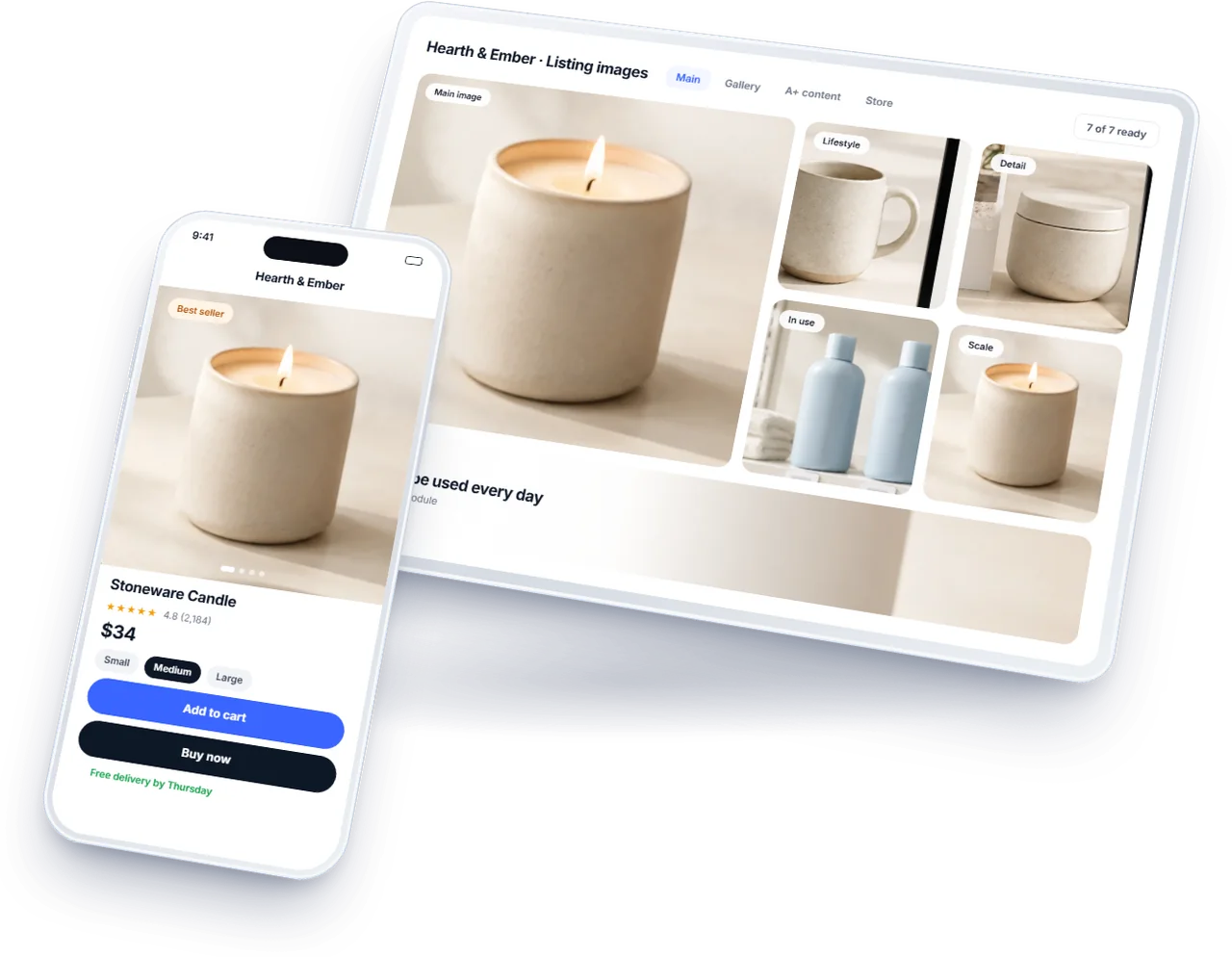
A brand on Shopify no longer needs another tool to put a product on a new background. The media editor in the Shopify admin can replace a photo’s background with a colour or make it transparent, place the product in a scene described in a few words, and extend the frame around it, and since 23 October 2026 Sidekick, Shopify’s assistant, can generate images with transparent backgrounds too.
For a brand the useful question is not whether it can, but which images should be made this way and where they can go afterwards: the store, the marketplaces, the ads. This is what Shopify’s own help pages say the tool produces, the limits that decide where an image is usable, who owns it, and where a generated scene earns its place in a brand’s creative.
What the Media Editor Generates
Shopify describes three things. Color background replaces the background with a solid colour, or makes it transparent, detecting the product automatically and letting you correct the selection by hand. Generate transforms the image from a short written prompt, changing the background, the setting, the lighting or the style. Extend, which Shopify calls outpainting, grows the canvas beyond the photo’s edges to add space around the product or change its framing; it is not available in the mobile app.
The media editor around them has its own AI help: background removal and replacement on desktop and mobile, and suggested alt text for an image that has none, which Shopify recommends keeping to about 125 characters. Every edit can be reverted to the original photo, even after saving.
On plans, Shopify’s page says two things at once: media generation with Sidekick is available on the Basic, Grow, Advanced and Shopify Plus plans, and, for a limited time, media generation in the file editor is available on all Shopify plans at no additional cost. Check the page when you start, since the second line is the one that will change.
The Limits That Decide Where an Image Can Go
Resolution first. Shopify says generated images default to 1 megapixel, by the photo’s aspect ratio: larger images are scaled down to it and smaller ones scaled up. For a square image that is roughly 1,000 by 1,000 pixels. That is plenty for a lifestyle image on a product page, a collection banner viewed on a phone, or a social post; it can be small for an image a shopper zooms into, and a marketplace sets its own minimums, which Amazon’s are set out in Amazon’s product image requirements.
Then format and keeping. A transparent background survives only in a PNG, so Shopify has you save such an image as a new PNG file. The editor makes one generated scene at a time; you can generate more, but any you have not saved are deleted when you close it, so save the ones worth keeping, to the store or to your device, as you go.
Then the watermark. Shopify applies an invisible watermark to every generated image, describes it as metadata, says it cannot be removed and says it does not restrict commercial use. It is invisible to a shopper; it is the kind of signal a platform reading files for AI content can see. For a brand that is no bad thing: if a platform ever asks which images were generated, the watermark and an honest file name together are the record, and nobody has to reconstruct it from memory.
What a Generated Image Can Do on Each Marketplace
Shopify does not restrict where its generated images are used, but the marketplaces have rules of their own, and a generated image meets some of them and not others.
Size. A generated image defaults to about one megapixel, roughly 1,000 pixels a side for a square. Amazon accepts that, though it recommends 1,600 pixels or more on the longest side so shoppers can zoom. Walmart asks for at least 1,500 by 1,500 for zoom and recommends 2,200, so a one megapixel image falls short there. TikTok Shop's floor of 600 pixels is met.
The main image. All three want the actual product on pure white with nothing laid over it. A colour background set to white can serve, if the cut is clean and the product fills the frame as each marketplace asks. A generated scene cannot: it is not a white background, and TikTok Shop's rules refuse digital renderings in the main image outright.
The gallery. Secondary images are where generated scenes belong on a marketplace: the product in use, in a setting, at a season. Walmart's rule that nothing appears in the main image that does not come with the item is a useful habit for the gallery too, since a scene can easily add props a shopper may think are included.
The rules for each, side by side, are in Amazon, Walmart and TikTok Shop image requirements.
Who Owns the Result
Shopify’s answer is plain: it does not claim ownership of images merchants create with media generation, and does not restrict where they use them, within Shopify or outside it. It also says it does not support uploading images taken from the web, and gives rights holders its copyright and trademark forms to report infringement. Start from your own product photography and the question of rights does not arise.
Shopify not restricting an image does not mean every other platform accepts it. The marketplaces each have their own rules on AI-made images, from labels in the file to what a main image may show, covered in what Amazon, Etsy and eBay now require of AI-generated listing images and, for people who were never photographed, in Amazon’s tag for AI-generated people. The image is yours; where it may appear is each platform’s to say.
Where a Generated Scene Earns Its Place
On our reading, generated scenes are strongest where a scene is the point and the product is already photographed well: secondary and lifestyle images on the product page, collection and campaign banners, seasonal backgrounds swapped for a sale, and ad creative tested in several settings before anything is shot for real. They are weakest where a platform wants the product as it is: a marketplace main image, which has its own rules, and any image whose job is to show exact colour, texture or scale.
Two habits keep them from looking generated. Keep one visual language across every scene, the same light and the same kind of setting, which is what a brand’s guidelines are for. And check each result at the size it will be seen: a scene that looks right on a monitor can put a product at the wrong scale for a phone, where most shoppers will meet it first.
When a Generated Image Misleads
A generated scene is an illustration of the product, and the shopper is entitled to assume the product in it is the one that arrives. Most of the ways a generated image goes wrong are ways it stops being true.
The product changes. Generative tools can soften a logo, alter text on packaging, shift a colour or smooth away a detail while building the scene around them. The product in every image has to be the product as it is, so compare each generated image with the original photograph before publishing it.
The scene implies more than is sold. A lamp shown on a styled desk with a matching shade and a plant suggests a set. If only the lamp is sold, the caption or the listing should say so, and the main images should show only what is in the box.
The scale is wrong. A generated room can make a small product look large or a large one small. Where size matters to the purchase, keep at least one image that shows the product's real size against something familiar, or a dimension drawing.
Why it matters commercially. An image that misleads is paid for twice: once in returns marked not as described, and again in reviews that say the product looks different from its photos. Consumer protection rules in most markets treat a misleading product image like a misleading description.
A Plan for a Catalogue, Not One Photo
A tool this quick invites a burst of images nobody planned. A short plan avoids it. Start from the products that sell, not the whole catalogue, and from a clean photograph of each, since every generated scene is only as good as the subject it starts from. Decide the two or three settings the brand will use, the kitchen, the studio, the outdoor table, and write the prompt for each once, so every product placed in the kitchen sits in the same kitchen. Save each image with a name that says it is generated and where it is allowed to go, because six months from now nobody will remember which banner was photographed and which was made in the editor.
Then keep the real photographs. A generated scene is easy to replace when a platform changes its rules or the brand changes its look; the original shot of the product is what every future image starts from, and the one that goes wherever a platform asks for the product exactly as it is.
Checking a Generated Image Before It Goes Live
A generated image takes seconds to make and a minute to check, and the minute is the part that protects the store. A short routine catches nearly every problem.
Zoom to full size. Look at the edges where the product meets the new background, at any text or logo on the product, and at anything fine such as straps, wires or stitching. Generative fills are most likely to fail at exactly those points.
Compare with the original. Put the generated image beside the source photograph and check colour, proportion and detail. If the product itself changed in any way, regenerate or go back to the photograph.
Check it at the size it will be seen. Most product images are first seen small, in a collection grid or a search result. A scene that reads well full screen can be a muddle at thumbnail size, with the product lost in it.
Write the alt text. Describe what the image shows, product first, in plain words. It helps shoppers using screen readers and tells search engines what the image is, which a generated scene's file name will not.
Keep the original. Store the source photograph with the generated versions. When the scene needs changing for the next season, the starting point should be the real photograph, not a generation of a generation.
Getting Good Results From a Prompt
Shopify’s own advice is specific. Prompts work best at three to seven words, written as short phrases separated by commas; the generator is not a chatbot, so long requests and conversation do not help. Describe the location, the lighting, the colour and the camera angle. Give the product’s size, such as an 8oz jar candle or a 26 inch suitcase, so the scene is scaled to it, and say how it is grounded, such as a bottle sitting on a table, so it does not float.
We use the same discipline in our own listing images work: a real photograph first, generated scenes where they help, and every image checked against the platform it is going to. If you would like your product images looked at with that in mind, send us the listing.
Frequently Asked Questions
The questions that come up most often on this subject.
For now, yes. Shopify’s help page says that for a limited time media generation in the file editor is available on all Shopify plans at no additional cost, and separately lists the Basic, Grow, Advanced and Shopify Plus plans as the ones where media generation with Sidekick is available. Because the free period is described as limited, check the page before planning a catalogue’s worth of images around it.
Shopify does not claim ownership of images made with media generation and does not restrict where you use them, inside or outside Shopify. Each marketplace still applies its own rules: some ask for AI-made images to be labelled, and main images have requirements of their own. Use generated scenes where a platform allows them, and keep a real photograph of the product for the places that want the product as it is.
One megapixel by default, by the aspect ratio of the photo you start from, according to Shopify. Larger photos are scaled down to it and smaller ones scaled up, so for a square image the result is roughly 1,000 by 1,000 pixels. That suits product page lifestyle images, banners and social posts; for images a shopper zooms into, or a marketplace with its own minimums, check the size before using one.
Yes, an invisible one. Shopify applies a watermark to every image made with media generation, describes it as metadata, says it cannot be removed and says it does not restrict commercial use. Shoppers cannot see it and it does not change how the image looks; it is a signal in the file that the image was made with AI, which platforms reading files for that can detect.
Open the image in the media editor from the Shopify admin and choose Color background, which detects the product and lets you correct the selection, then make the background transparent. Save it as a new file in PNG format, because Shopify says other formats cannot keep a transparent background. Since 23 October 2026 Sidekick can also generate images with transparent backgrounds.